Connected TV (CTV) Campaigns: User Guide
This guide will walk you through the process of setting up and managing your Connected TV (CTV) campaigns within the POKKT DSP, designed to help you reach highly engaged audiences on the big screen.
What is Connected TV (CTV)?
Connected TV (CTV) refers to any television set that can connect to the internet and access content beyond traditional broadcast, cable, or satellite programming. This includes:
-
Smart TVs: Televisions with built-in internet connectivity and operating systems (like Android TV, Roku TV, Samsung Tizen, LG webOS) that allow users to download and stream apps directly.
-
Streaming Devices: External devices plugged into a TV, such as Roku, Amazon Fire TV Stick, Apple TV, Google Chromecast, and gaming consoles (PlayStation, Xbox) that enable internet content streaming.
In essence, CTV provides an "over-the-top" (OTT) viewing experience, delivering video content directly to the viewer's TV via the internet. Advertising on CTV allows brands to deliver video ads within this streamed content, reaching viewers in a premium, lean-back environment.
What are the available Connected TV (CTV) capabilities on POKKT DSP?
POKKT DSP is continuously evolving its offerings to include robust CTV advertising solutions. Our platform currently provides a comprehensive suite of capabilities to precisely target and deliver your campaigns on Connected TV:
-
Advanced Device & Connectivity Targeting:
-
Operating System (OS) targeting
-
Device Language targeting
-
Device Recency targeting (e.g., targeting users based on their recent app usage)
-
Device Brand & Model targeting
-
Device Orientation targeting
-
Video Reward Type targeting (e.g.,Incentivized video or Non-incentivized video)
-
Network Type targeting (e.g., Wi-Fi, cellular)
-
Operator/Carrier targeting
-
IP address targeting
-
-
Granular Location Targeting:
-
Latitude-Longitude (Lat-Long) targeting
-
Geo targeting (Country, State, City, Zipcode, etc.)
-
-
Rich Contextual Targeting:
-
App targeting (specific applications where ads will appear)
-
App Type & Category targeting
-
IAB Content Category targeting
-
Video Ad Position targeting (e.g., pre-roll, mid-roll, post-roll)
-
Content Delivery Type targeting (e.g., On-demand or Livestream content)
-
Content Rating targeting (e.g., G, PG, R, etc.)
-
Content Type targeting (e.g., Video, Game, Music, etc.)
-
Content Language targeting
-
-
Dynamic Environmental & Time-Based Targeting:
-
Weather-based targeting
-
Temperature-based targeting
-
Daytime Parting targeting (scheduling ads for specific times of day or days of the week)
-
-
User & Frequency Targeting
-
CTV ID based user targeting
-
User frequency capping
-
-
Tracking & Measurement:
-
Supports tracking for all VAST 4.0+ video events.
-
Supports third party tracker for all video events.
-
-
Advertiser Insights Dashboard now supports reporting for Connected TV campaigns as well.
How to Set Up Connected TV Campaigns: Step-by-Step Guide
Step 1: Log In and Create a New Campaign:
-
Log In to POKKT DSP: Navigate to the POKKT DSP login page and enter your credentials.
-
Navigate to Campaign Management: From the dashboard, navigate to the 'Delivery' section and click on "Campaigns" in the left-hand navigation bar.
-
Create New Campaign: In the campaign list page, click the "Create New Campaign" icon.
-
Define Campaign Basics: Fill in the essential details for your campaign.
Step 2: Create a New Offer/Bidder
-
Create Offer/Bidder: Within your newly created campaign, click "Add Offer/Bidder" to create a line-item within the campaign.
-
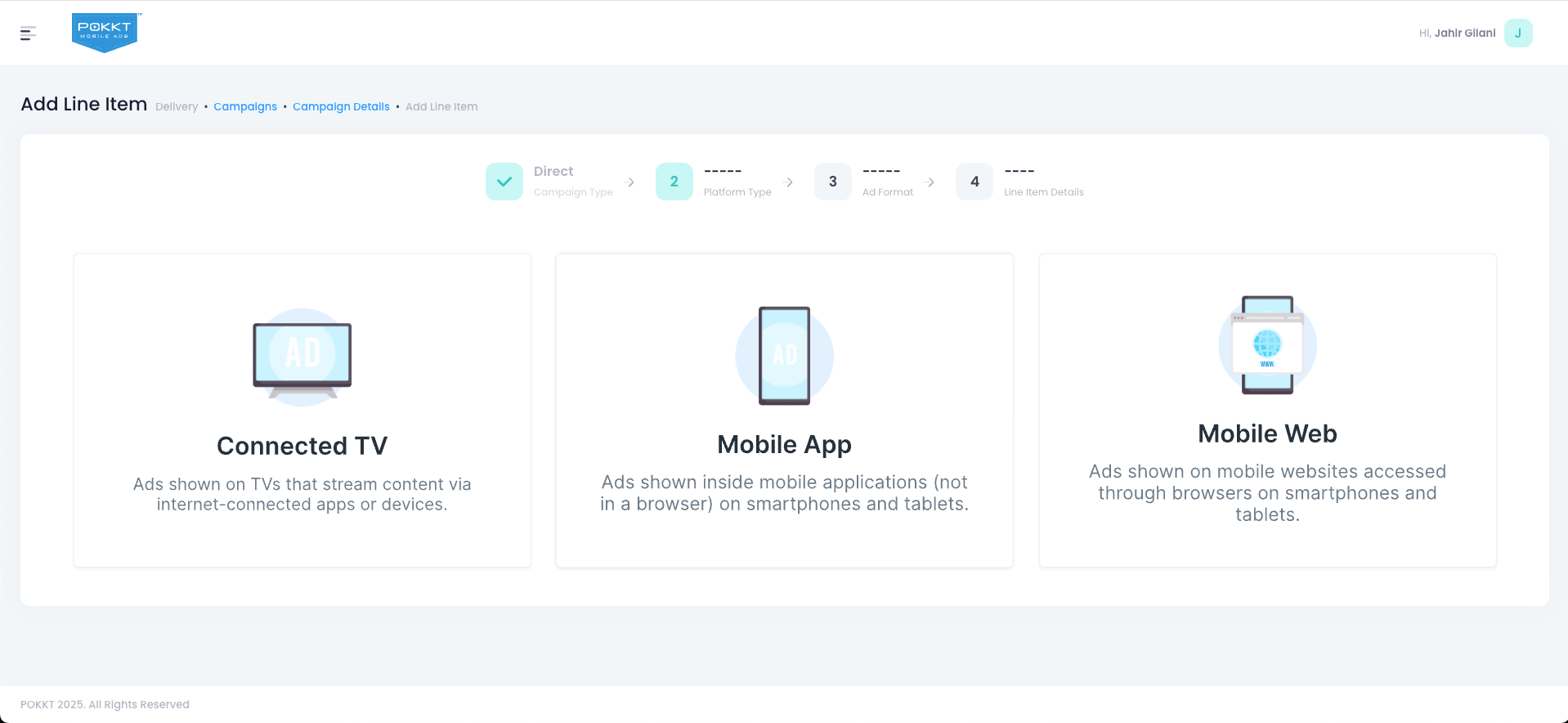
Platform Type Selection: Select "Connected TV" in the platform type selection page. This ensures your campaigns will target CTV inventory.
-
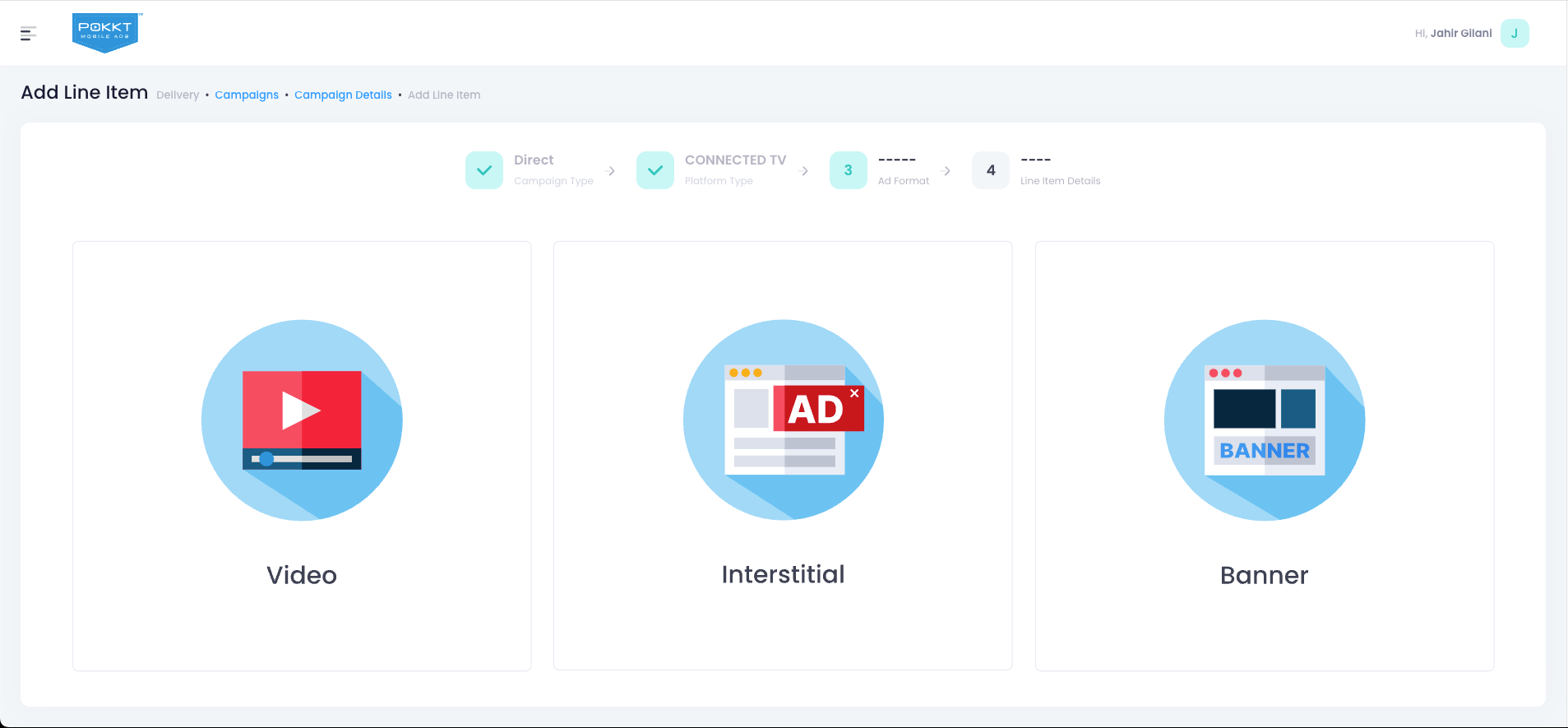
Ad Format Type Selection: Select "Video" in the ad format type selection page to ensure your campaign targets video ad inventory.
-
Define Offer/Bidder details: Add comprehensive details for your line item, including:
-
Pricing details (e.g., CPM).
-
Budget details specific to this offer.
-
Pacing & capping details to control ad delivery speed and frequency.
-
Media targeting details.
-
Tracker details for third party measurement.
-
-
Save Offer/Bidder: Click on the "Save" button to create the offer/bidder.
Step 3: Define Targeting for the Offer
-
Create Targeting Profile: Within your newly created line-item, click "New Targeting" to create a dedicated targeting profile for this offer/bidder.
-
Define targeting within profile: In the targeting profile configuration, select your desired criteria:
-
Device: Specify CTV device types using CTV-related filters based on OpenRTB 2.6 guidelines.
-
Inventory: Select specific SSPs or CTV publishers/apps you wish to target.
-
Contextual Targeting: Choose content categories or genres relevant to your brand.
-
Audience: Define your audience segments using demographic, geo-based (lat-long), and user-based targeting.
-
-
Save Targeting Profile: Click "Save" to finalize your targeting profile.
-
Add Targeting Profile to Offer/Bidder: Within the offer/bidder settings, select the newly created targeting profile to apply it to your line item.
Step 4: Add Creatives to the Offer
-
Upload Creatives: Upload your video ad creatives specifically designed for CTV. Ensure they meet recommended specifications for resolution, aspect ratio, and file size.
-
Add Creatives to Offer: Within the offer/bidder, select the newly uploaded creative(s) to associate them with this line item.
-
Multiple Creative Sizes for Network-Based Rendering: To ensure optimal delivery and rendering across various CTV devices and network conditions, upload multiple versions of your creative to support different resolutions and aspect ratios.
Reporting and Optimizing Your CTV Campaigns
-
Delivery Report: Use the delivery report for daily detailed reporting on your campaign's performance.
-
Funnel Report: Leverage the funnel report for debugging campaign-related issues, helping to identify where users might be dropping off.
-
Realtime Revenue Report: Check the realtime revenue report to monitor instant campaign delivery and revenue generation immediately after going live.
-
Optimization: Analyze key metrics like Video Completion Rate (VCR), Effective Cost Per Mille Impressions (eCPM), and engagement rates.
Troubleshooting & Best Practices
-
Low Impressions/Delivery: Check for narrow targeting, low bid prices, incorrect budget pacing, or limited SSP/inventory availability. Use the Funnel Report to debug bottlenecks.
-
Low Video Completion Rate (VCR): Evaluate creative engagement (length, hooks, CTAs), ensure audience relevance, and manage ad frequency to avoid fatigue.
-
Inaccurate Reporting/Discrepancies: Verify third-party measurement pixel implementation, allow for data latency, and compare against the Delivery Report.
-
Brand Safety Concerns: Review contextual targeting, utilize exclusion lists, and leverage brand safety features.
-
Optimize for CTV: Use high-quality, high-definition video creatives with compelling audio, concise messaging, and clear calls to action suitable for the "big screen". Consider brand recall or QR codes for CTAs due to limited direct clicks.
-
Strategic Targeting: Combine demographic, geo-based, and contextual targeting with third-party data. Leverage cross-channel synergy with mobile app.
Future Enhancements for CTV Campaigns
-
Household Targeting: Introduce capabilities to target audiences at a household level, providing more precise reach for shared viewing environments.
-
Enhanced Contextual Targeting: Further advance contextual targeting methods to intelligently match ads with specific content and viewing environments, improving relevance and engagement.
-
User Affinity Targeting: This will allow advertisers to reach highly engaged audiences on CTV based on their content consumption habits, increasing ad relevance and impact.
-
Video Creative Transcoding for Environment-Based Serving: Implement advanced video transcoding capabilities to automatically optimize and serve the most suitable creative version based on the user's device, network conditions, and player environment, ensuring optimal viewer experience.
-
Multiple Creative Targeting & Dynamic Optimization: Enable more sophisticated management of multiple creative versions, allowing for dynamic serving based on real-time performance and audience segments. This includes automated identification and serving of the best-performing creatives.