Exchange Logs Tracking
The page guides user on the steps to enable logging and view data for exchange logs
Overview
This feature enables tracking of ad requests and responses between the platform, bidders, and publisher apps. By activating logs at the offer/bidder and app levels, users can easily monitor and troubleshoot issues for improved ad delivery performance.
Step-by-step Instructions
-
To enable logging for responses for a particular offer/bidder. Go to its configuration page and enable Exchange/S3 logs under 'Logs Advanced Settings' for offer and under 'Admin Optimization' for bidder. Note: The logs are auto-disabled after two hours of being enabled.
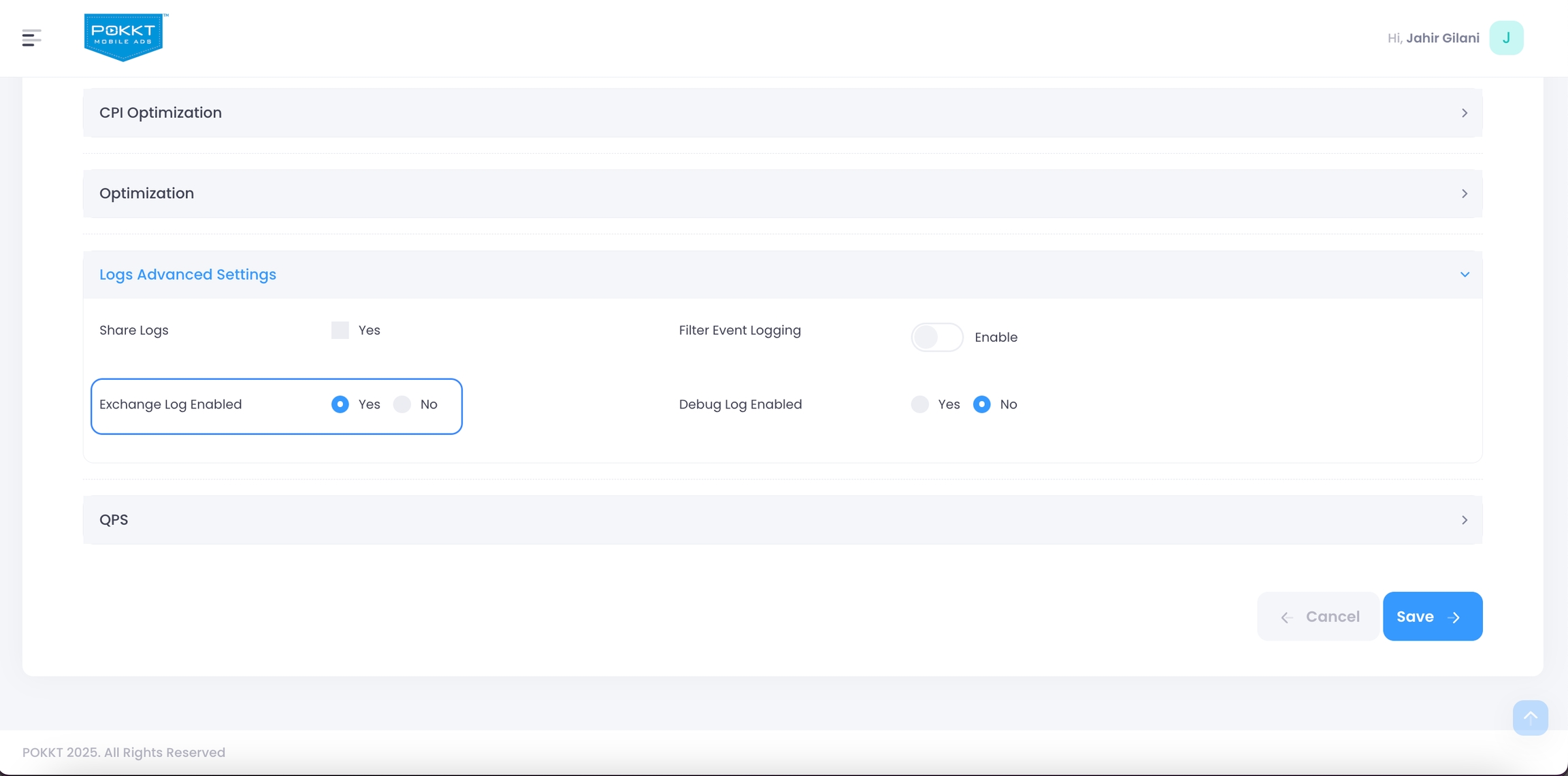
-
Next, to enable logging for requests for a particular publisher app/endpoint navigate to Publisher > Apps page and under App configuration enable S3 logs. Note: The logs are auto-disabled after two hours of being enabled.
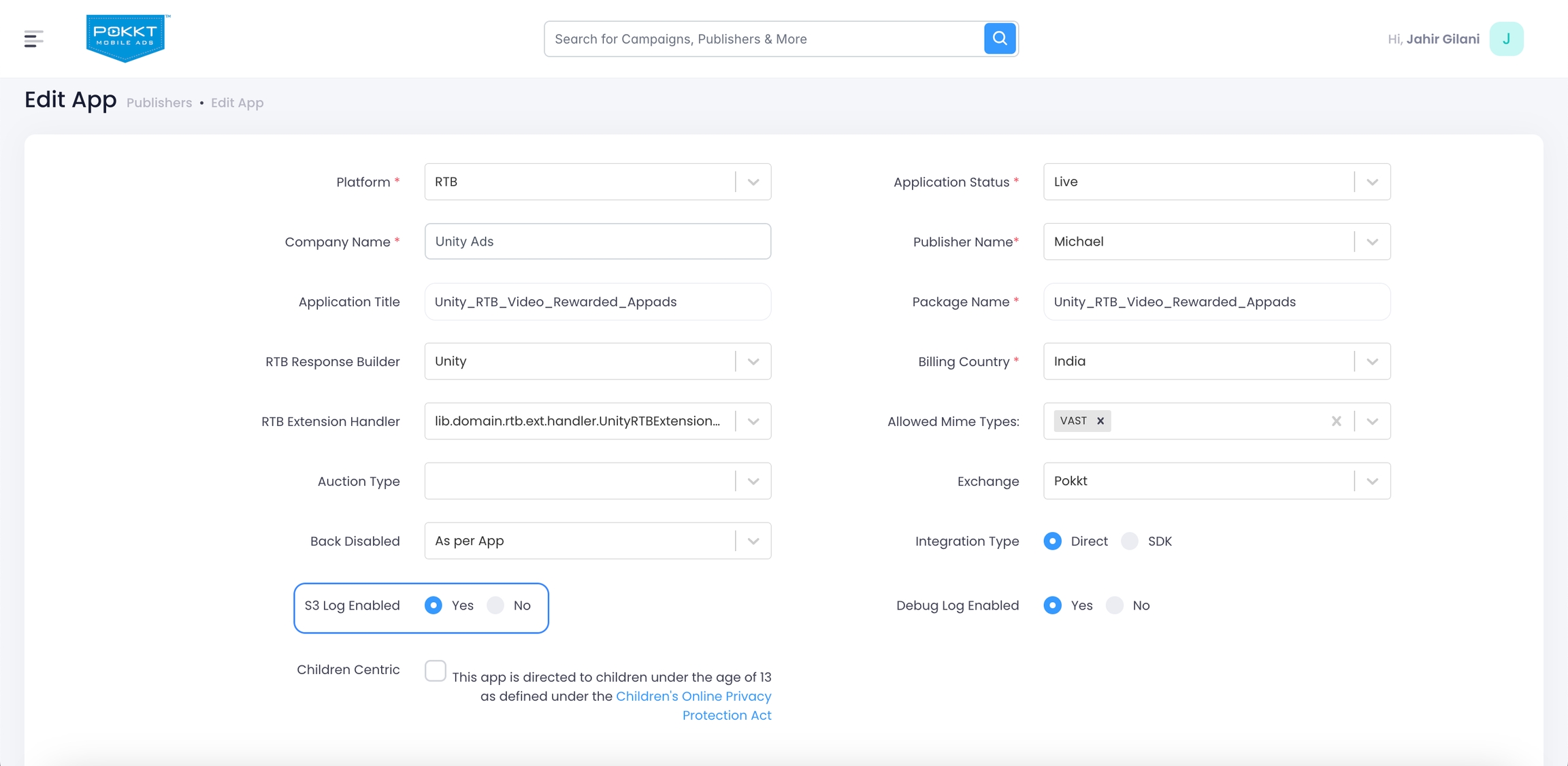
-
To view the requests and response data for particular offer/bidder and publisher app navigate to the "Troubleshooting" section using the left navigation bar and select "Exchange Logs".
-
On the "Exchange Logs" page, select Date, Publisher App, Offer & Log Level (POKKT Request, POKKT Response, Bidder Request & Bidder Response) and click on download button which will export 2000 rows of log data.
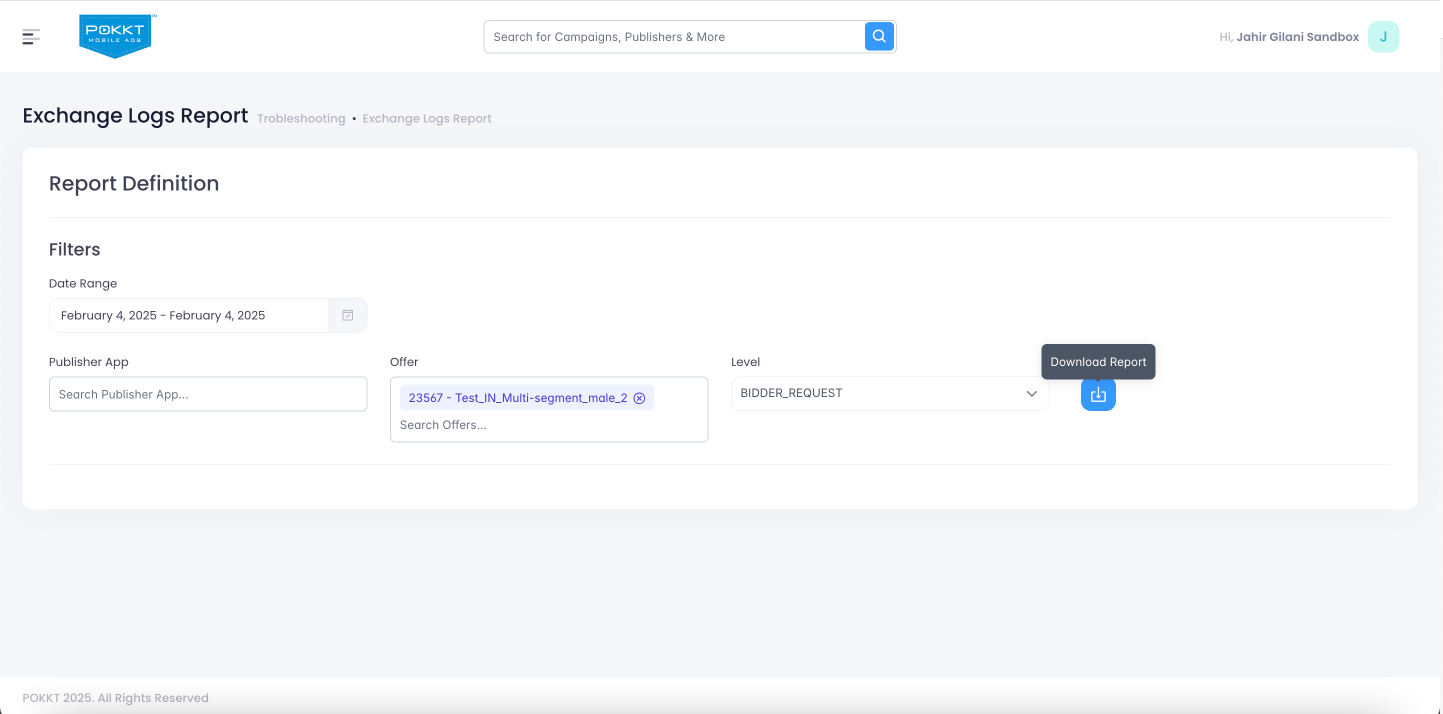
Note: The logs data will be available after one hour from the time logging was enabled.