Report Scheduler
This guide will walk you through the process of setting up and managing your Scheduled Reports within the POKKT DSP, designed to help you deliver pre-created reports at recurring schedules.
What is Report Scheduler?
The Report Scheduler is a feature that automates the delivery of pre-created reports in the POKKT Ad Platform. It allows all POKKT dashboard users to set up recurring schedules or trigger immediate report delivery, thereby eliminating manual reporting tasks and ensuring key stakeholders have timely access to campaign performance data in their preferred format.
How to Set Up Report Scheduler: Step-by-Step Guide
Step 1: Log In and Navigate to Reports:
-
Log In to POKKT DSP: Navigate to the POKKT DSP login page and enter your credentials.
-
Navigate to Reporting Section: From the dashboard, navigate to the 'Reporting' section and click on "Reports" in the left-hand navigation bar.
-
Select the Report Type: Navigate to the desired Report Section
-
POKKT Dashboard
-
Delivery
-
Campaign
-
Programmatic
-
Supply
-
-
Define Report Fields : Fill in the essential details of Filters and Dimensions for the Report.
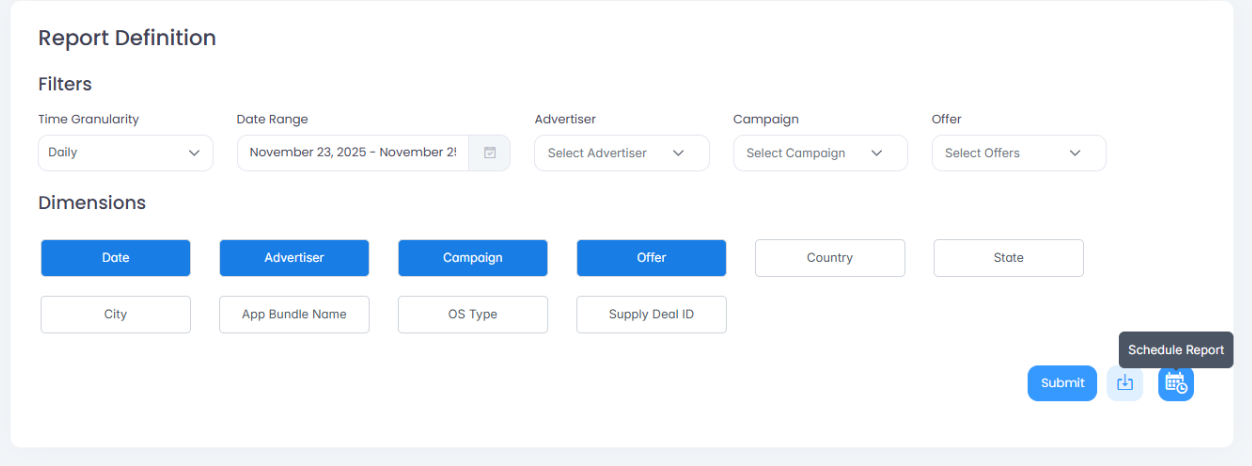
Step 2: Schedule a New Report
-
Basic Details: Fill the basic details
-
Report Name - Provide a unique and descriptive name for easy identification of the scheduled report.
-
Duration - Select the date range for the data that will be included in the report each time it runs.
-
Offset - Select the number of days you want to skip, pushing the report's date range further into the past.
Ex - Duration: 'Last 30 Days' and Offset: 3 Days : The report will cover the 30-day period between 3 days ago and 33 days ago.
-
-
Email Recipients - Enter the email addresses of all individuals who should receive the report delivery. Note: The report creator is added by default, but you may remove yourself if necessary.
-
Frequency - Choose how often you want this report to run automatically.(e.g., Daily, Weekly, Monthly).
-
In case of Weekly select the day/s of the week (at least one) on which you want the scheduled report to be delivered.
-
In case of Monthly select the day/s of the month(at least one) on which you want the scheduled report to be delivered.
-
-
Start Date - Select the specific date you wish for the scheduled deliveries to begin.
-
End date - Select the date when the automatic report deliveries should stop. (Maximum duration is 180 days from the Start Date.)
-
-
Submit Schedule: Once all the basic details are filled, click "Submit" to activate and start the scheduled deliveries.
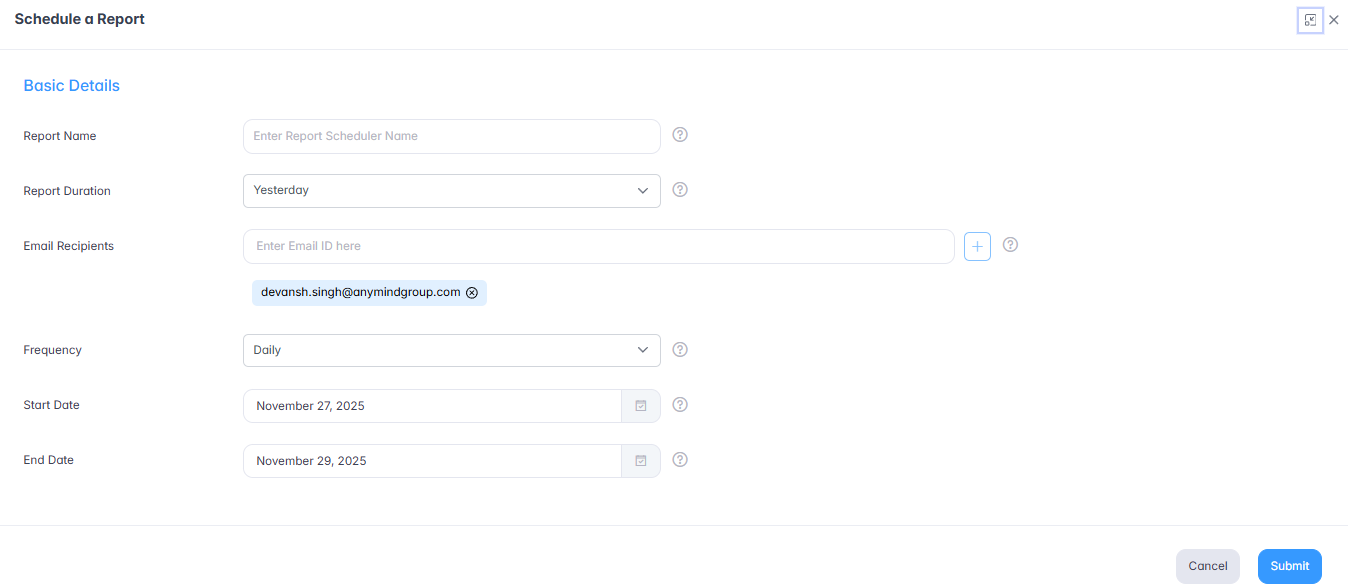
Step 3: Manage Scheduled Reports
-
Navigate to Scheduled Reports: From the dashboard, navigate to the 'Reporting' section and click on "Scheduled Reports" in the left-hand navigation bar.
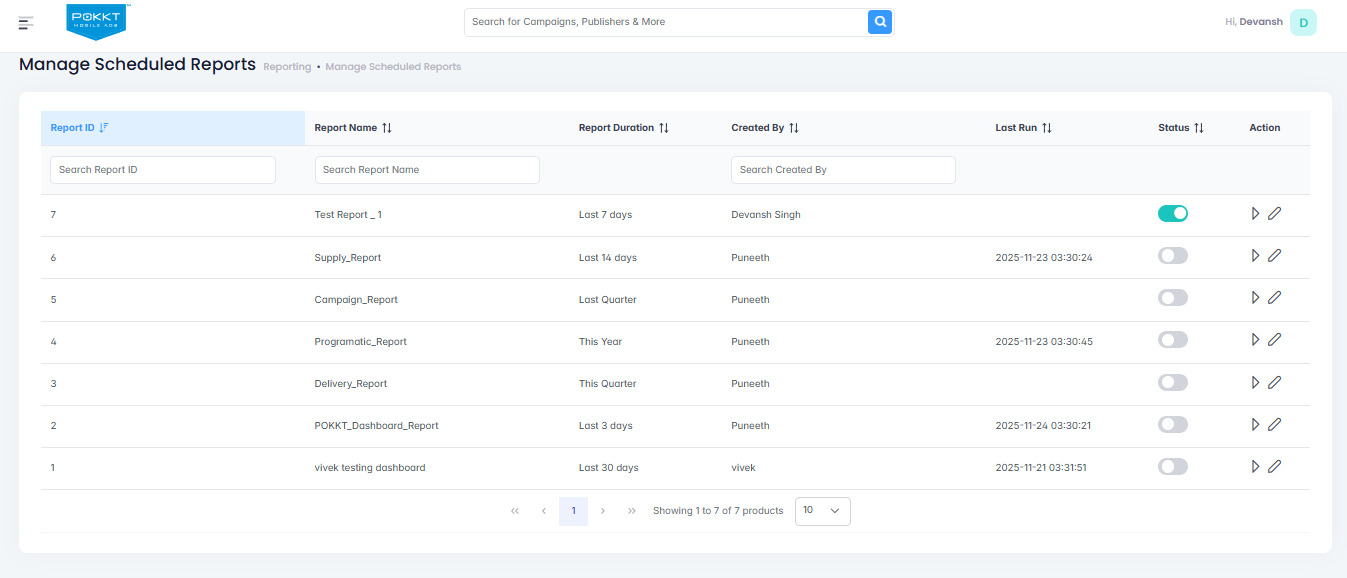
-
Manage Scheduled Reports: Take actions on the existing scheduled reports
-
Pause Schedule - Temporarily stops the automatic delivery of an active report. The report definition and all scheduling settings are saved so you can easily re-activate it later.
-
Activate Schedule Report - Resumes the automatic delivery for any report that is currently paused, using its existing defined conditions.
-
Run Now - Immediately generates and sends the report one time. Note: This action does not affect the existing schedule or future scheduled delivery times.
-
Edit - Allows you to modify the scheduling parameters (e.g., Frequency, End Date, Recipients). Clicking on the 'Edit' icon redirects you to the Update Schedule Report Form. Note: Changes will take effect starting with the next immediate scheduled run of the report.
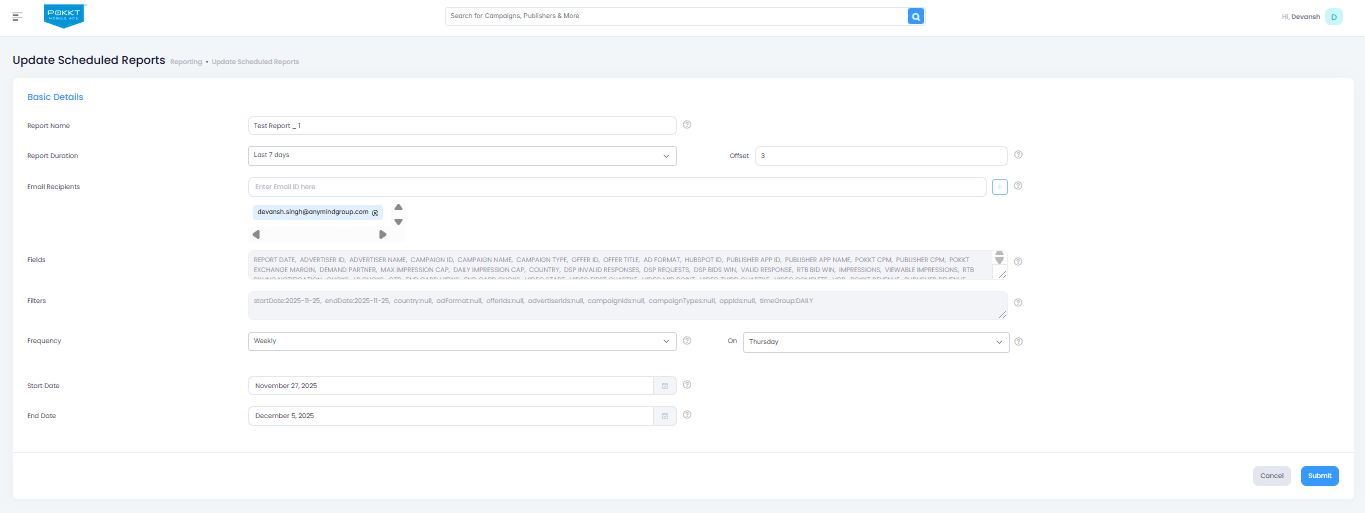
-
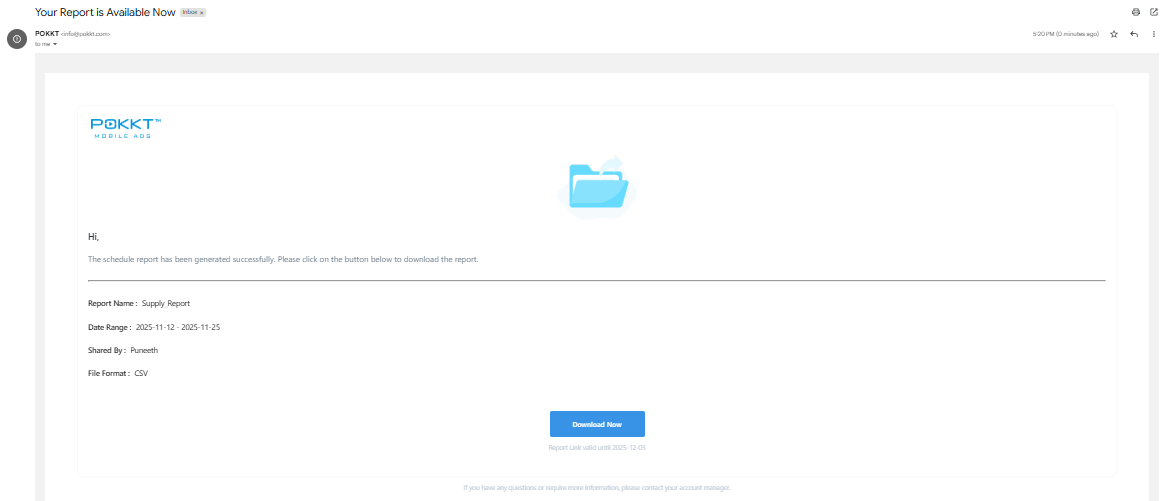
Sample Schedule Report
FAQs
-
What time is the scheduled report delivered to the recipients? Each scheduled report is generated everyday at 9AM IST.
-
Is there a limit to the number of email recipients I can add? There is a limit of maximum 10 recipients per schedule.
-
How long is the data accessible from the scheduled email? The report link is available for download for 7 days from the time of delivery. After this 7-day window, the link will expire.
-
How does the 'Offset' field interact with the report 'Duration'? The Offset shifts the entire report duration to an earlier period, allowing you to exclude the most recent days from the dataset. This provides flexibility for reporting on finalized or complete periods (e.g., full weeks or months) regardless of the scheduled delivery date. Example: If today is Tuesday, scheduling a report for 'Last 14 Days' with a 1-Day Offset will exclude Monday's data, ensuring the report covers the 14-day window that concluded on the preceding Sunday.